How to Broadcast a Cricket Match: Step by Step Guide
How to broadcast a cricket match: cameras, internet, score graphics and streaming to YouTube or Facebook, from one phone to a full production with Crickslab.
How to Broadcast a Cricket Match
A Step by Step Guide from One Phone to a Full Production
The stream starts. Two hundred people tune in. The picture is fine, the commentary is fine, and the comments fill up with one question: what’s the score?
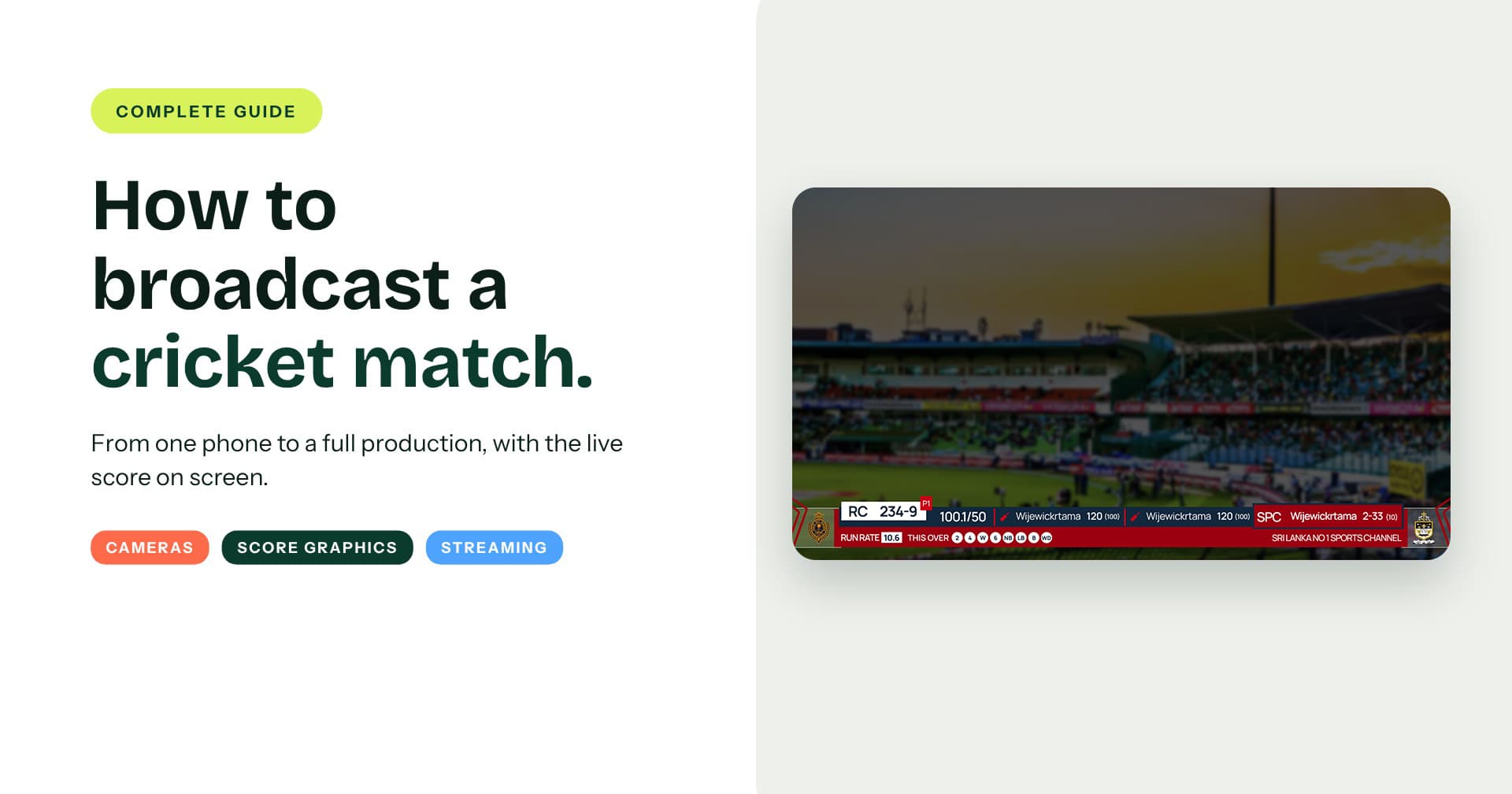
That is the most common mistake in club cricket streaming. The camera is the easy part. What makes a cricket broadcast watchable is the score on screen, and the graphics that come with every wicket, boundary and fifty.
This guide shows how to broadcast a cricket match step by step: what you need, where to put the cameras, how to get the live score on screen, and how to run graphics during play. At each step we show what Crickslab does for you, from a single phone at a club ground to a multi camera production.
What You Need To Broadcast A Cricket Match
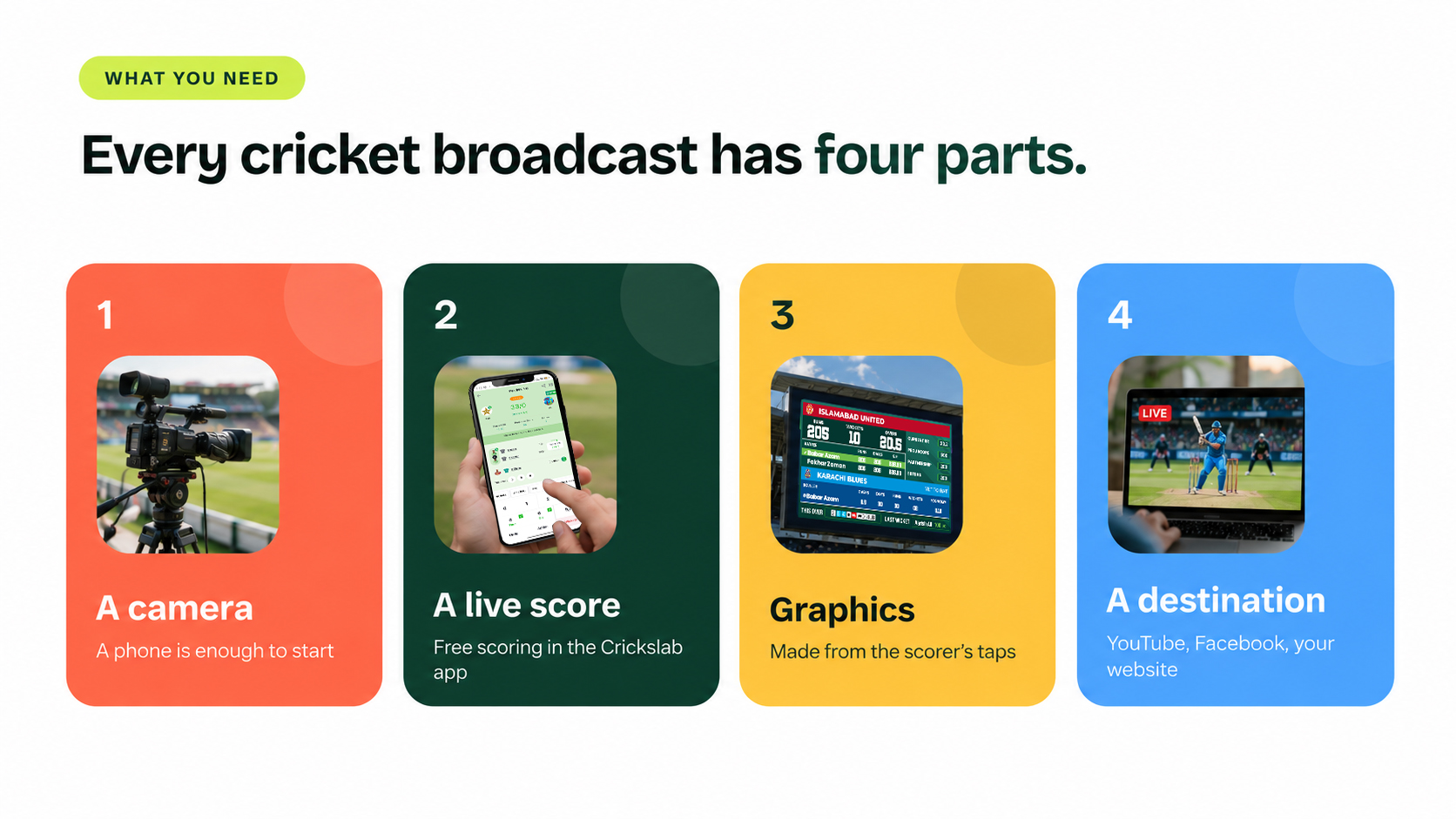
Every cricket broadcast, big or small, has four parts.
A camera. A phone is enough to start.
A live score. Someone scoring every ball. On Crickslab, scoring in the app is free.
Graphics. The score bar, batter cards, wicket and boundary graphics. Crickslab makes these from the scorer’s taps.
A destination. Where people watch: YouTube, Facebook, your league website or app.
Three Levels Of Cricket Broadcast
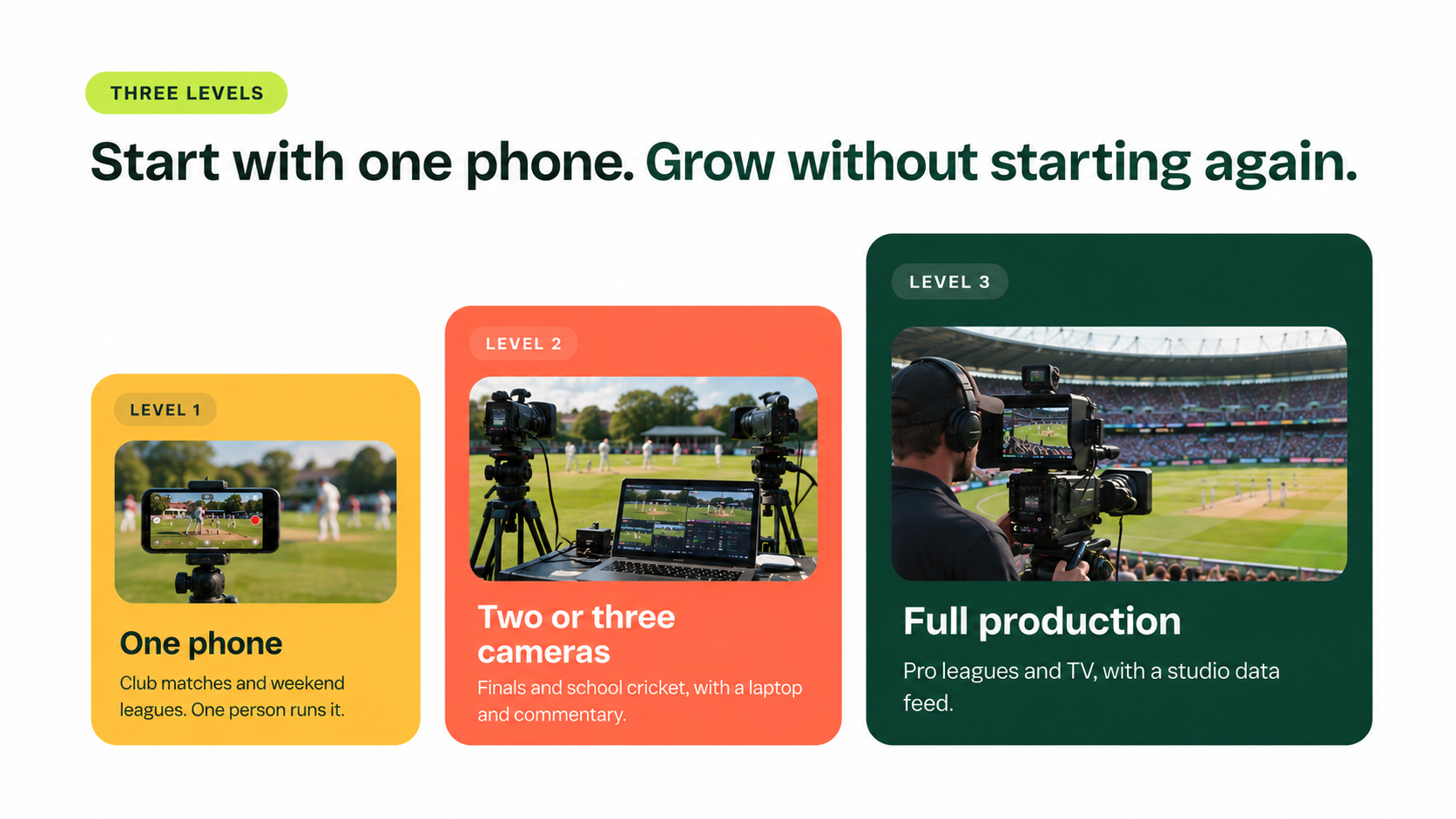
Level 1: one phone. One phone on a tripod behind the bowler’s arm, streaming with the live score on screen. Right for club matches and weekend leagues. One person can run it.
Level 2: two or three cameras. A laptop running OBS, vMix or Wirecast, a main camera behind the bowler, a second square of the wicket, and commentary. Right for tournament finals and school cricket.
Level 3: full production. Several cameras, a graphics operator, a studio or outside broadcast truck, and a data feed into the broadcaster’s own graphics system. Right for professional leagues and TV channels.
You can start at level 1 and move up without changing how you score or how the graphics work.
Step 1: Decide Where People Will Watch
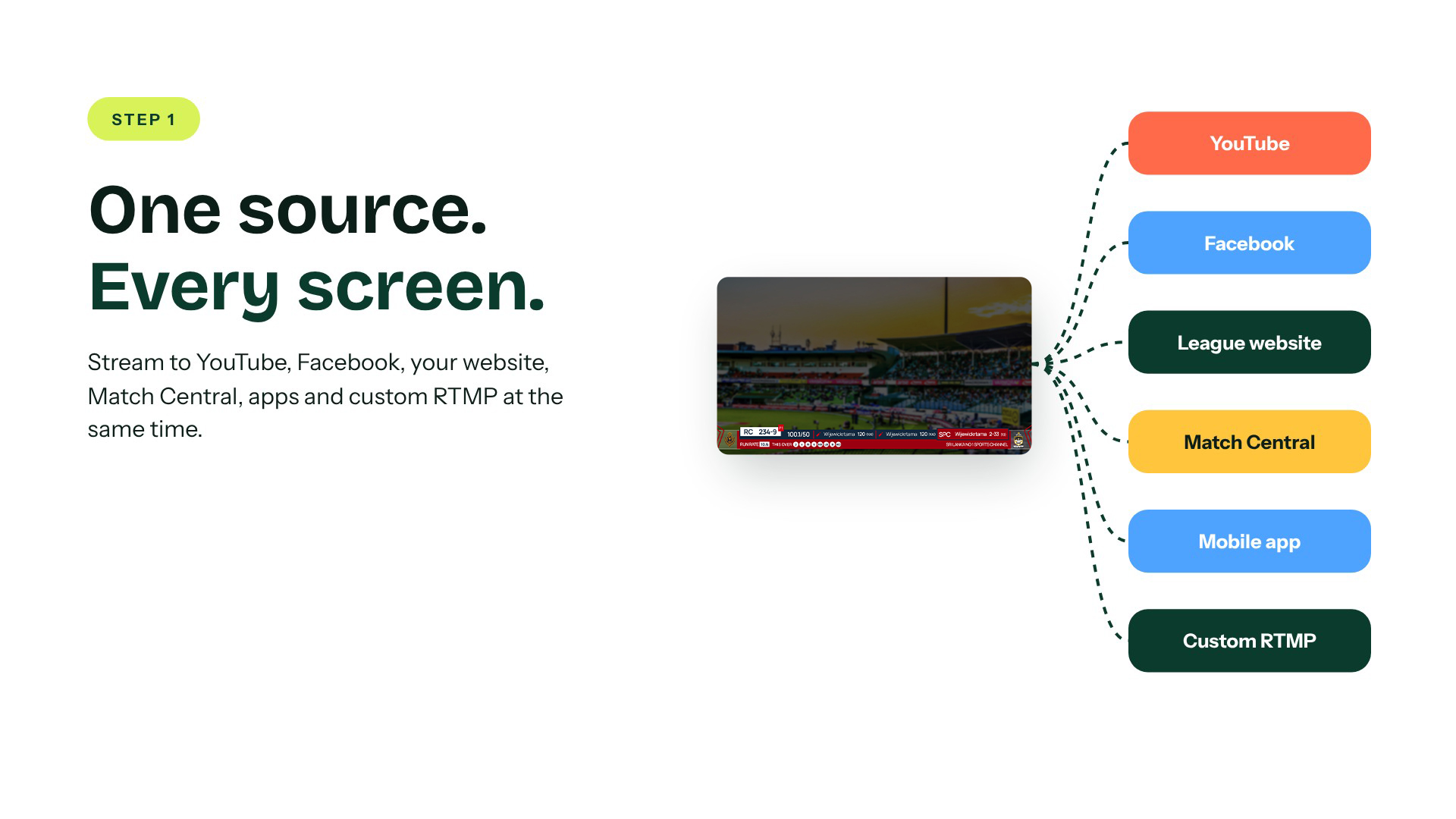
Pick your destinations before match day. YouTube and Facebook reach the widest audience. Your league website, app and Match Central page keep fans with your competition.
You do not have to choose one. Crickslab streams one source to several places at once: YouTube, Facebook, league websites, Match Central, mobile apps and any custom RTMP destination.
Step 2: Put The Cameras In The Right Place
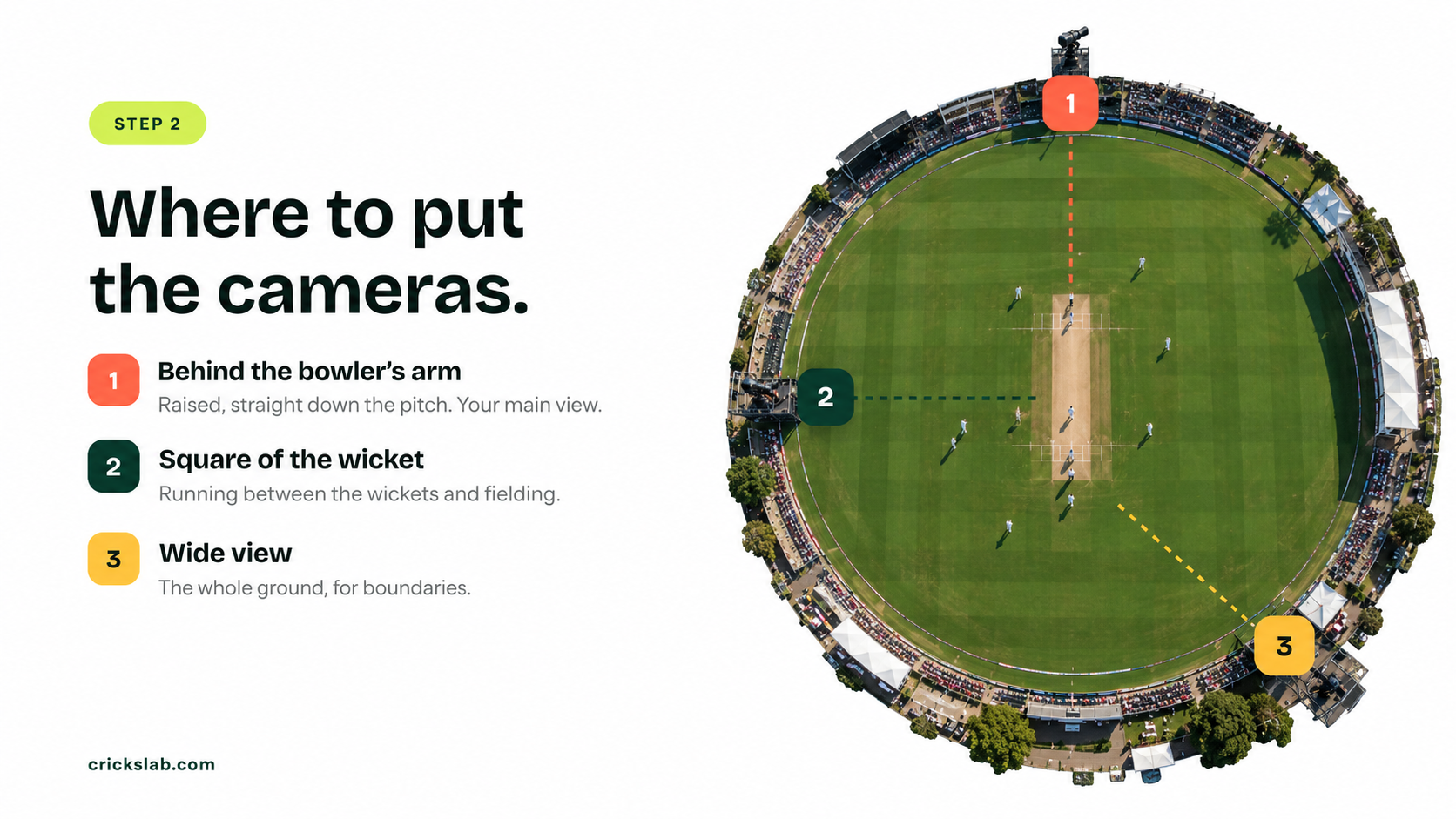
The main camera goes behind the bowler’s arm, raised as high as you safely can, looking straight down the pitch. This is the view viewers expect, and it shows line, length and the shot.
A second camera goes square of the wicket to show running between the wickets and fielding. A third, wide camera shows the whole ground for boundaries and replays of the field.
Use a tripod, keep the camera out of the sightscreen, and agree the position with the umpires before the toss.
Step 3: Check The Internet And Power
Most failed streams fail here. Test the upload speed at the ground, at the time of day you will play. For a 720p stream, aim for a steady 4 to 5 Mbps upload, and roughly double that for 1080p. A 4G or 5G router with a backup SIM is more reliable than ground wifi.
Bring power banks or a generator for every device, and start the stream ten minutes before the toss so you find problems early.
Step 4: Connect The Live Score
This is the step that turns a video into a cricket broadcast.
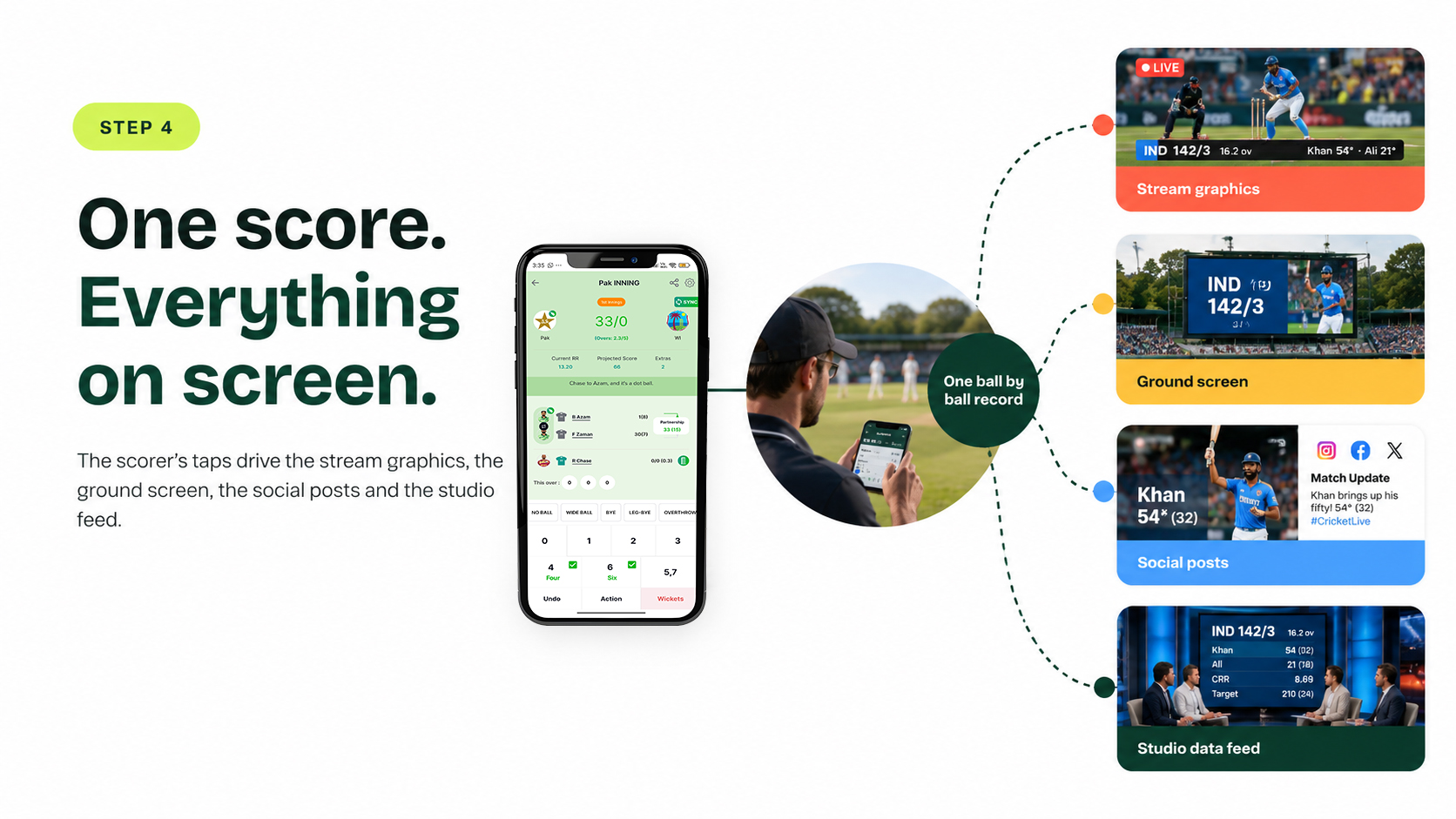
On Crickslab, the scorer scores every ball in the free app, and that same ball by ball entry drives the on screen graphics, the ground screen, the social posts and the studio data feed. One record, so the score on the stream always matches the official scorecard. Nobody retypes numbers into a graphics tool.
Our guide to the best cricket scoring app covers what to test before you pick a scorer’s app.
Step 5: Add The Score Graphics
Pick a look for your stream. Crickslab has template families from simple static bars to animated 3D, plus a pack of more than 90 overlays on the larger plans: score bar, batter and bowler cards, partnerships, run rate, match summary and more. You can preview each template with your own colours, and add sponsor logos so every over pays its way.
If you stream with OBS, vMix or Wirecast, the graphics go in as a browser source, so they sit on top of your camera feed like any other layer.
Step 6: Run The Graphics During Play
During the match, someone has to trigger the right graphic at the right moment. Crickslab gives you three ways.
From a phone. The graphics controller runs on a phone at the ground or on a studio desk.
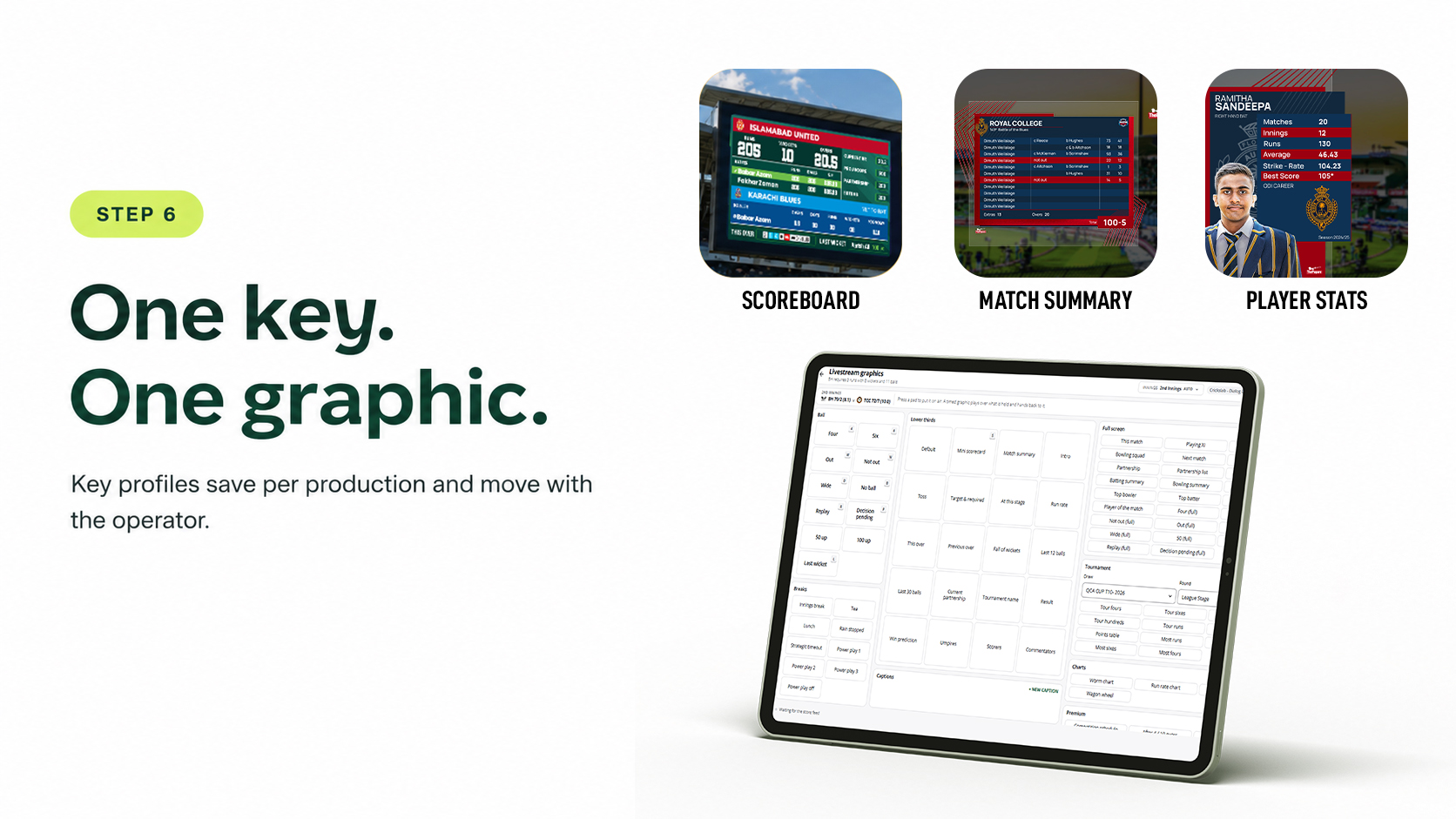
From the keyboard. Shortcuts put graphics on keys: 1 for the scoreboard, 2 for the wicket graphic, 3 for player stats, 4 for the partnership, 5 for the match summary and 6 for the run rate. Key profiles save per production and move with the operator.
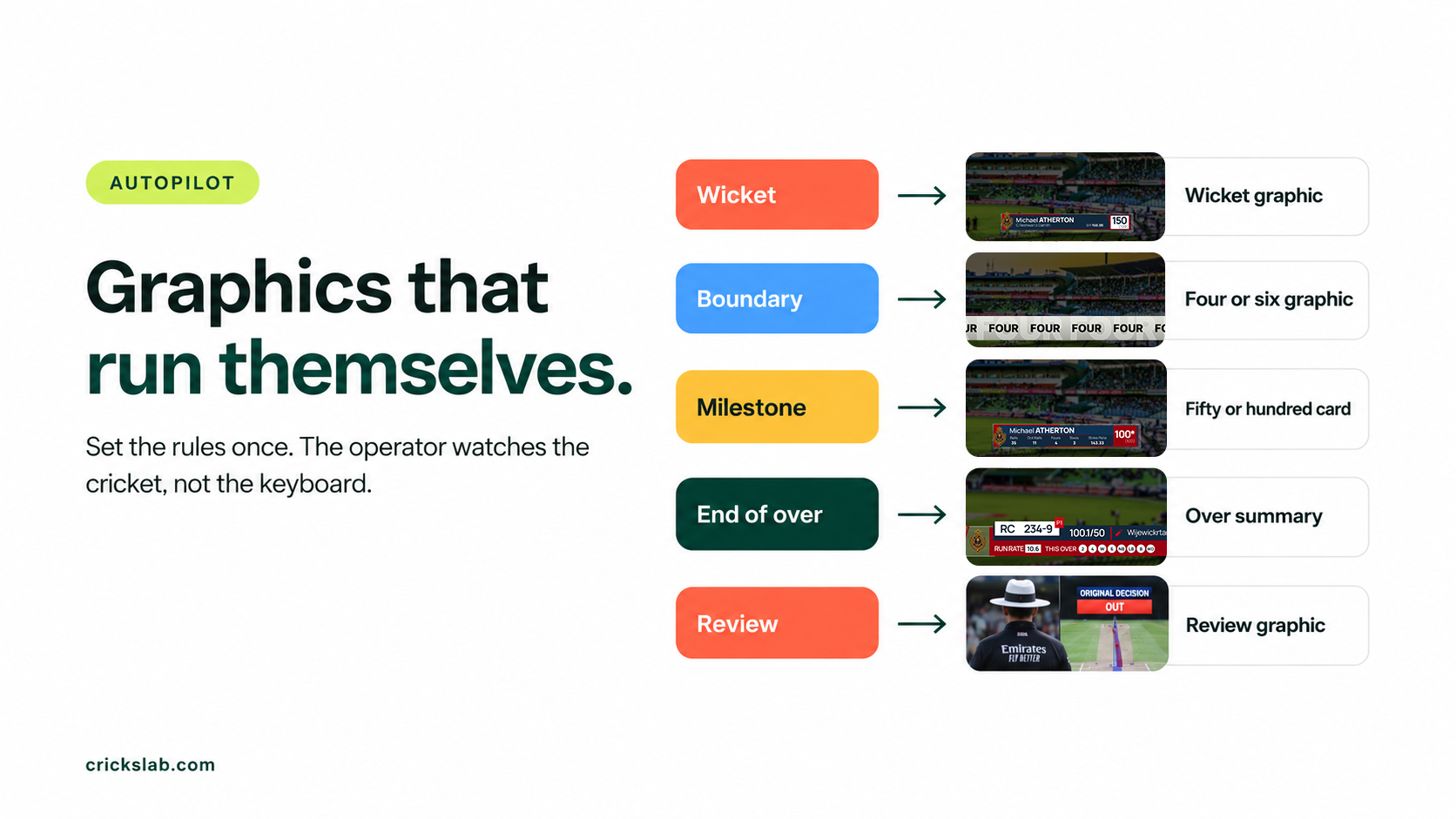
On Autopilot. Set the rules once, and the matching graphic plays on every wicket, boundary, milestone, end of over and review. The operator watches the cricket instead of the keyboard.
Step 7: Add Commentary And Sound
Even one voice makes a stream feel like a broadcast. Use a headset microphone for the commentator and a separate microphone near the boundary for crowd and bat sound. Give the commentator a screen with the live scorecard, so they never have to guess the score either.
Step 8: After The Last Ball
The broadcast does not end at the last ball. The match summary graphic goes on screen, the scorecard is already complete on Match Central, and Artwork Studio can make the result and player of the match posts from the same score. Keep the recording on YouTube or Facebook so highlights can be clipped later.
How To Broadcast A Cricket Match At TV Scale
T Sports puts more than 1,000 cricket matches on air with Crickslab’s live overlays and studio controller. Read how T Sports runs its cricket broadcast graphics. At that level, Crickslab also sends an XML data feed into studio graphics systems such as Viz, Ross and Chyron.
What It Costs
Scoring in the Crickslab app is free. Streaming with graphics starts at $29 a month, or you can pay per match. Bigger plans add sponsor logo slots, the full overlay pack, Shortcuts, Autopilot, multi camera control and desktop scoring. Every plan covers unlimited matches. See the current plans on the live streaming page.
Streaming your next match? Score it free in the Crickslab app and add graphics from $29 a month. Running a league or a channel? Book a demo and we will set up your broadcast with you.
Frequently asked questions
How do I broadcast a cricket match?
Pick where people will watch, put a camera behind the bowler’s arm, test the internet at the ground, score every ball in a scoring app, add score graphics on top of the video, and stream to YouTube, Facebook or your own website. On Crickslab, the scorer’s taps drive the graphics, so one person can run a simple broadcast.
Can I live stream a cricket match with just a phone?
Yes. One phone on a tripod behind the bowler’s arm, a steady upload connection and a live score on screen is enough for club and league cricket.
How do I put the live score on a cricket stream?
Score the match ball by ball, then add the score graphics as a layer on your video. With Crickslab, the graphics come straight from the scorer’s app, and in OBS, vMix or Wirecast they go in as a browser source.
Where can I stream a cricket match?
YouTube and Facebook reach the most people. Crickslab can stream one source to YouTube, Facebook, your league website, Match Central, mobile apps and custom RTMP destinations at the same time.